%20Logo.png?width=100&height=100&name=brs%20(Bow%20River%20Solutions)%20Logo.png)
 By
·
5 minute read
By
·
5 minute read
When organizations adopt paginated reports in Power BI, one tool quickly becomes essential: Power BI Report Builder. The desktop authoring environment lets you design pixel-perfect, printable reports, preview them, and publish them to the Power BI Service. It provides full control over the report page layout, allowing authors to structure data precisely for printing or exporting.
In this article, we will walk through:
- What Power BI Report Builder is and what it helps you do
- How the interface is structured
- A practical development methodology you can reuse for future reports
The goal: make Report Builder feel less like a mysterious “developer tool” and more like a powerful, approachable workspace you can use confidently.
What Is Power BI Report Builder and How It Supports Paginated Reports
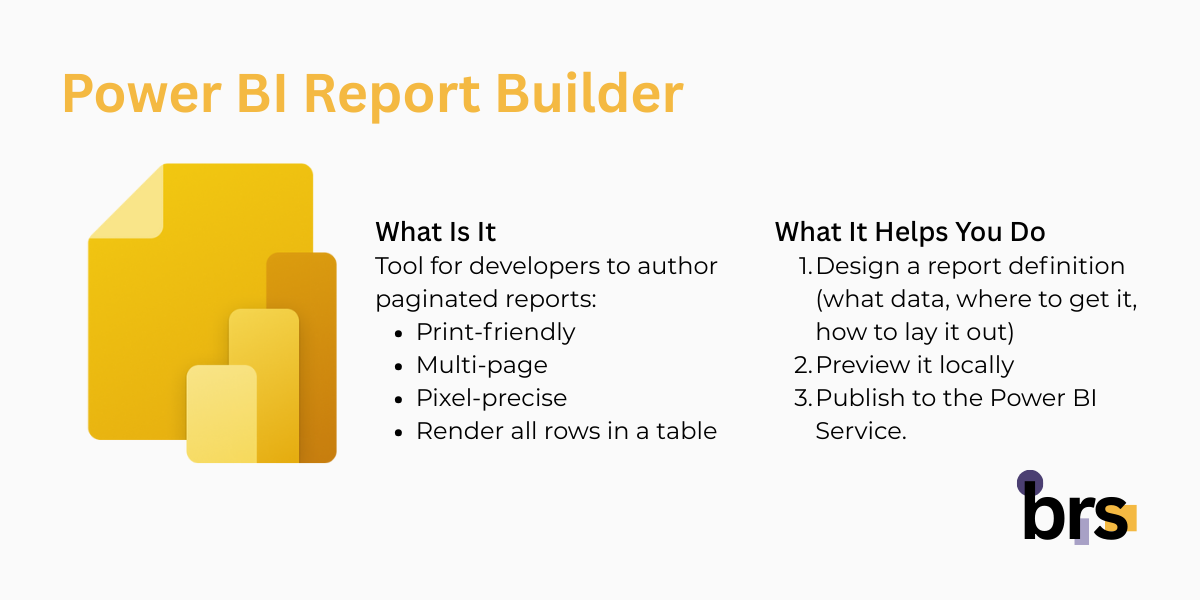
Power BI Report Builder enables you to create paginated reports—print-ready, multi-page, and pixel-perfect documents that display every row of data in a table. You design a report definition by specifying the data, its source, and the layout, preview the results locally, and then publish the report to the Power BI Service. Report Builder is a tool for developers; it is not intended to be used as a report consumption tool.
Here is a quick overview of what you can do with it:
- Data sources: SQL Server, Oracle, Power BI semantic models, Analysis Services, Azure SQL, OData, and more
- Layout control: Precise page sizing, headers and footers, repeating groups, and nested regions
- Expressions: A rich expression language for conditional formatting and calculations
- Delivery: Interactive viewing and export to PDF, Excel, Word, CSV, XML, and MHTML
- Distribution: Email subscriptions and deployment pipelines
- Governance: Sensitivity labels, workspace permissions, and audit logs
Power BI Report Builder is free to download and use. With a free Power BI license, you can publish paginated reports only to My Workspace. To publish to other workspaces, you need a Power BI Pro or PPU license, Contributor access to the workspace, and Build permission on the dataset.
Understanding the Power BI Report Builder Interface and Workspace
A) Getting Started with Power BI Report Builder
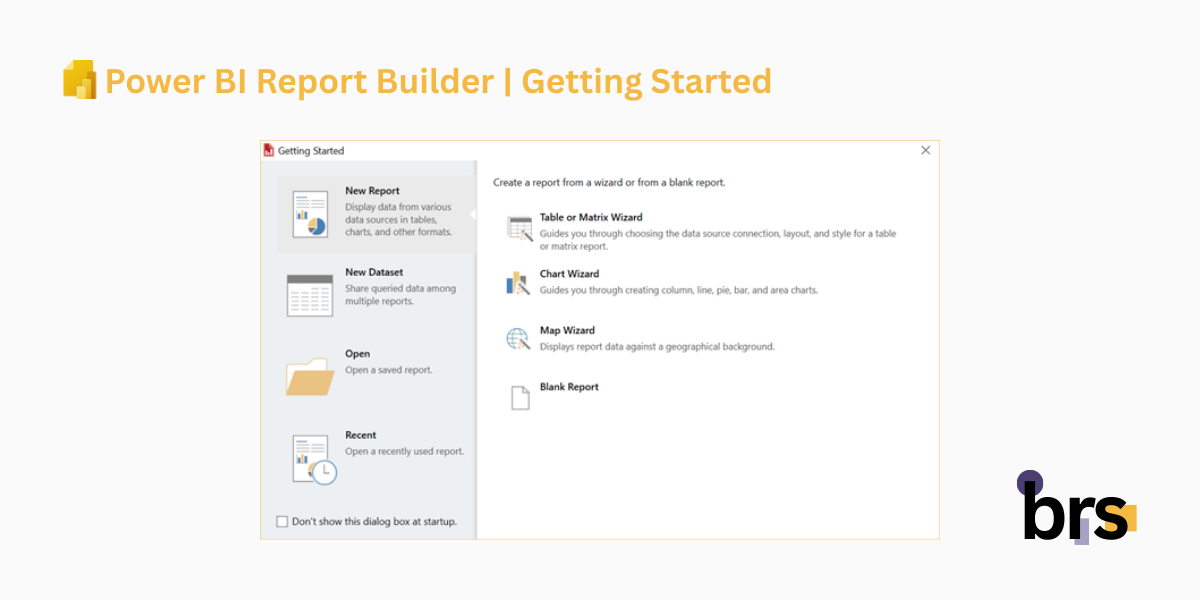
When you open Report Builder, you are typically greeted by the Getting Started window. From here, you can create a report from a Wizard or a blank report:
- Table or Matrix Wizard: Guides you gradually to quickly create a tabular or grouped paginated report.
- Chart Wizard: Helps you build charts from your data using a guided setup.
- Map Wizard: Assists in creating geographic maps based on location data.
- Blank Report: Starts with an empty canvas for full manual report design.
For new authors, this accelerates the path to building their first paginated report.
B) Key Components of the Report Builder Interface
The Power BI Report Builder interface is designed to make building paginated reports clear and efficient. At the center is the report design surface, where you create the layout, while supporting panes and tools around it help you manage data, formatting, grouping, and previewing. Understanding these main screen elements makes it easier to navigate the workspace and build reports with confidence.
- Ribbon
The ribbon sits at the top and gives you quick access to all report design tools. It is organized into tabs (File, Home, Insert, View) so you can add items, format reports, and switch between design and preview. - Parameters
The Parameters pane lets you define inputs that control how the report behaves. Parameters can filter data, change what users see, and link related reports together. - Report Part Gallery
This pane allows you to search for reusable report components stored on a report server. You can insert predefined tables, charts, or layouts to speed up report creation (note: report parts are deprecated in newer environments). - Properties
The Properties pane shows detailed settings for whatever item you select. From here, you fine-tune formatting, layout, behavior, and expressions for report items or the report itself. - Report Design Surface
The design surface is the central workspace where you build your report layout. This is where you place tables, charts, text boxes, images, and other elements, and control how the report looks on the page. - Report Data
The Report Data pane is where you define and manage data sources, datasets, fields, parameters, and images. You drag fields from this pane onto the design surface to display data in your report. - Grouping
The Grouping pane helps you organize data into row and column groups. It shows the hierarchy of groups used in tables and matrices and allows you to add totals, subtotals, and structured data layouts. - Run
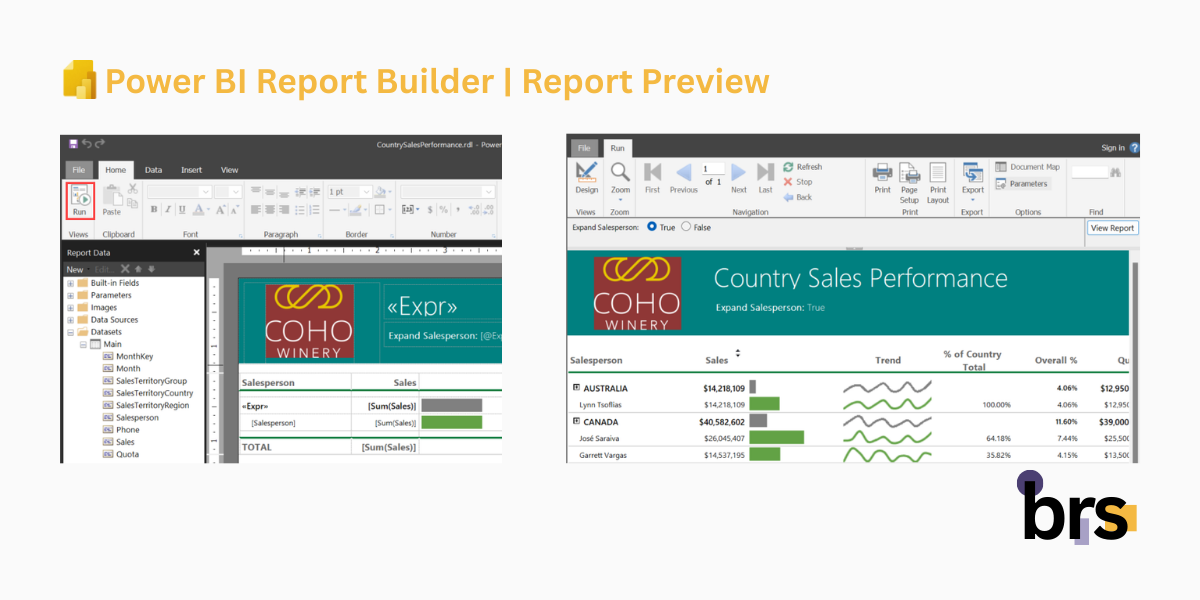
The Run option lets you preview the report with real data. It renders the report, as users will see it, allowing you to test parameters, layout, and pagination before publishing.

Report Preview in Power BI Report Builder
Design, Preview, and Refine Reports
Report Preview is a core part of building paginated reports in Power BI Report Builder. Authors constantly move between Design and Preview modes to validate layout, formatting, and behavior. You design on the canvas, preview the output, make adjustments, and repeat—an efficient, iterative workflow that quickly becomes second nature.
Print Layout and Parameters
The Print Layout view shows exactly how a report will look when printed or exported, including page size, orientation, and pagination. This makes it easy to catch issues like blank pages early. Preview mode also reflects real user interaction with parameters—if no default values exist, users must enter them and run the report to see results.
Preview Tools and Export Options
In Preview mode, the ribbon shifts to execution tools: switching back to Design, zooming, page navigation, refresh controls, printing, exporting, and text search. The experience mirrors the Power BI service, ensuring what you preview is what users get.
Using Wizards to Build Reports Faster
Built-in wizards help teams create tables, matrices, charts, or maps quickly. Available from the Getting Started screen or the Insert ribbon, they guide you systematic—accelerating development without sacrificing structure.
Development Methodology for Paginated Reports
Building paginated reports in Power BI Report Builder follows a clear, practical workflow. While there’s no single “right” way to develop a report, these steps provide a reliable methodology you can reuse to move from a blank canvas to a production-ready report with confidence.
- Open Report Builder
Launch Power BI Report Builder. Each instance works with one .rdl file, and multiple instances can be opened if needed. - Choose a Starting Point
From the Getting Started screen; select a wizard for a guided setup or a blank report for full control. - Define the Data Source
Identify where the data comes from and create the report’s data source. - Create Datasets
Build one or more datasets to retrieve the data required for the report. - Define Parameters (If Needed)
Add parameters to control filtering and user input. - Design the Report Layout
Use the canvas and the Insert ribbon to add tables, matrices, charts, and other report elements. - Preview and Iterate
Switch between Design and Preview modes to validate layout, pagination, and results. - Publish to Power BI
Save and publish the report to a Power BI service workspace on dedicated capacity. - Post-Publication Review
Perform final checks, security validation, and any required adjustments after publishing.
Conclusion
Power BI paginated reports fill a critical gap where precision, consistency, and complete data matter most. With Power BI Report Builder, you gain a structured, repeatable way to design pixel-perfect reports that are ready for printing, exporting, and enterprise distribution.
By understanding the interface, mastering preview tools, and following a clear development methodology, you can confidently build paginated reports that complement interactive dashboards and deliver trusted, production-ready reporting across your organization.
At brs, we can help you turn your data into insights with Power BI. Whether you are in oil and gas, mining, or manufacturing, our team can design and implement interactive reports or paginated reports tailored to your needs.
Your data is your most valuable asset — let us help you visualize it. Contact us today at info@bowriversolutions.com or visit www.bowriversolutions.com to start your data visualization journey.
About This Series
This article is part of our Power BI Paginated Reports Series, a structured guide designed for both business leaders and report authors.
For C-level and senior decision-makers, the series explains how paginated reports support operational reporting, governance, scalability, and consistent decision-making across the organization. For analysts, developers, and power users, it provides practical insight into how paginated reports are designed, built, and refined using Power BI Report Builder.
Each article focuses on a specific stage of the paginated report lifecycle—from foundational concepts to advanced capabilities. You can explore the series in order or jump directly to related topics:
-
Previous article: Power BI Paginated Reports Series: Reporting Overview and Use Cases
-
Next article: Power BI Paginated Reports Series: Designing Report Layouts
-
View the full series: https://bowriversolutions.com/blog