%20Logo.png?width=100&height=100&name=brs%20(Bow%20River%20Solutions)%20Logo.png)
 By
·
5 minute read
By
·
5 minute read
Data retrieval is the foundation of every Power BI Paginated Report. Before layout and formatting, Power BI Report Builder must know where the data lives, how to connect to it, and how to return it in a structured, tabular form. Unlike interactive reports, paginated reports rely on explicit data source and dataset definitions within the RDL (Report Definition Language).
This article explains how paginated reports retrieve data—from data sources and authentication to dataset creation—so you can choose the right approach and avoid common deployment issues.
Creating Data Sources in Paginated Reports
Every paginated report is built on one or more data sources defined directly in the RDL. Each data source has a unique name and includes:
- Data provider type
- Connection string
- Authentication method
These definitions tell Power BI how—and where—to retrieve data when the report runs.
Report Builder supports three primary data source types, each serving a distinct use case.
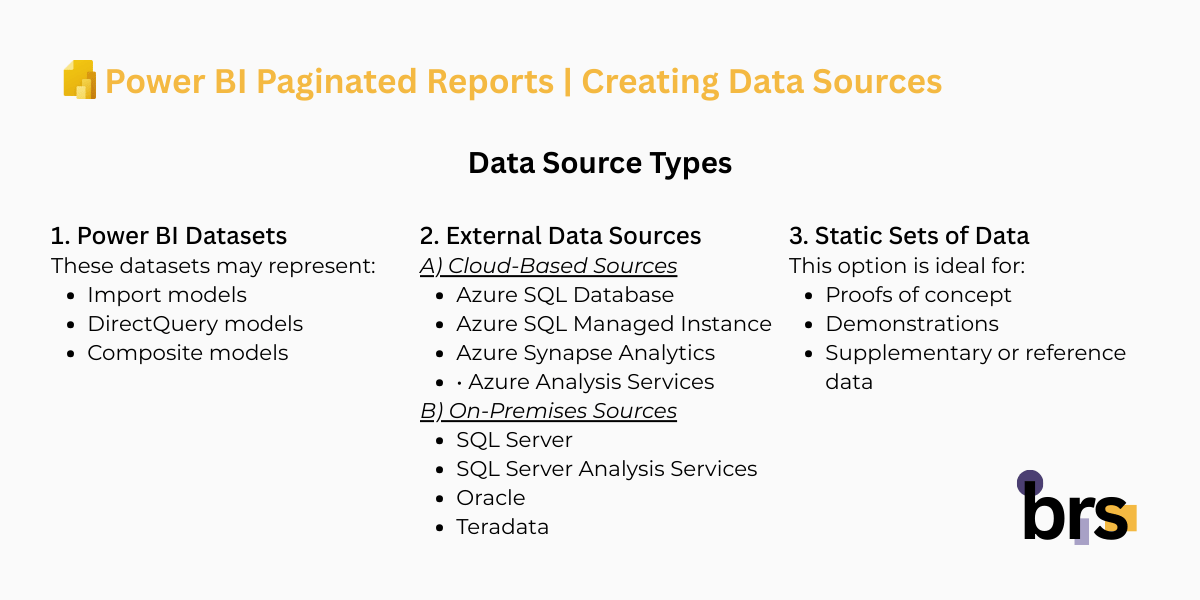
1. Power BI Datasets
Connecting to an existing Power BI dataset is a first-class option—and often the smartest one. When your report is published to a workspace, it can reuse datasets that already exist in that same tenant.
These datasets may represent:
- Import models
- DirectQuery models
- Composite models
This approach reinforces centralized modeling and governance. As long as you have Build permissions on the dataset, you can create paginated reports on top of it.
One important caveat: if a dataset is based on a live connection to SQL Server Analysis Services or Azure Analysis Services, you must connect directly to the underlying model rather than through the dataset.
For Premium workspaces, XMLA endpoints are available—but native Power BI dataset connectivity is generally recommended for both Premium and non-Premium environments.
2. External Data Sources
Paginated reports also support direct connections to external systems, which fall into two categories:
A. Cloud-Based Sources
- Azure SQL Database
- Azure SQL Managed Instance
- Azure Synapse Analytics
- Azure Analysis Services
B. On-Premises Sources
- SQL Server
- SQL Server Analysis Services (tabular or multidimensional)
- Oracle
- Teradata
When connecting to on-premises systems, the on-premises data gateway is required after publishing. While development and preview work locally, the Power BI service must be able to reach these systems once the report is deployed.
3. Static Sets of Data
A newer—and powerful—capability is the ability to define static datasets directly within Report Builder using “Enter Data.”
This option is ideal for:
- Proofs of concept
- Demonstrations
- Supplementary or reference data
It removes the need for a live backend connection, making reports easier to share and faster to prototype—especially in early project phases.
Authentication Options and Credentials
Authentication depends on the data source and deployment model. Options typically include:
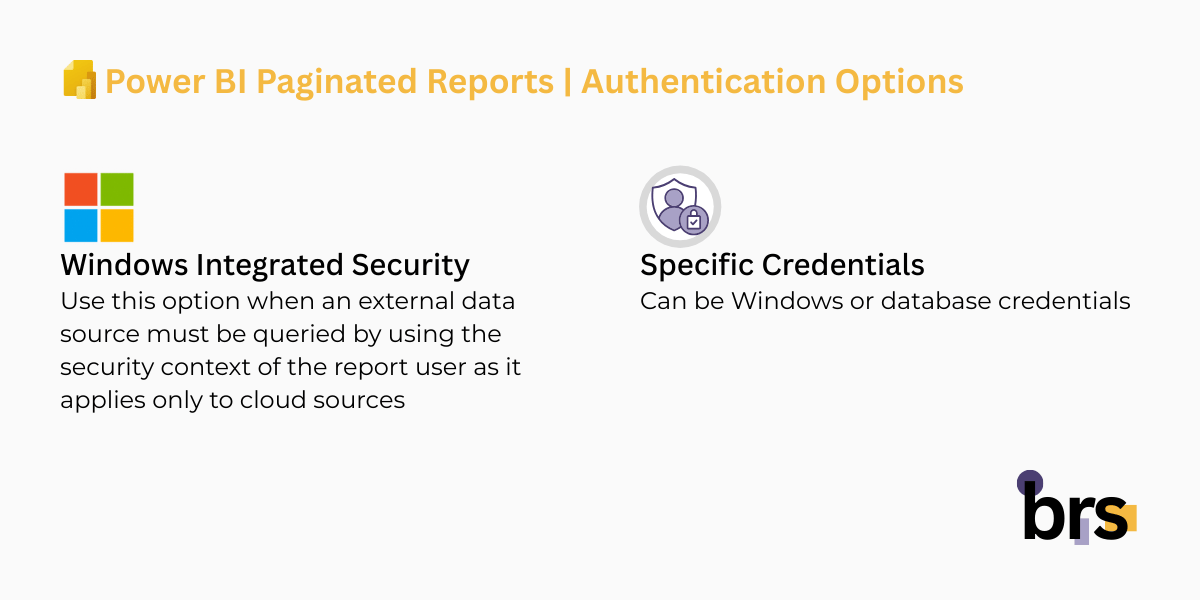
- Windows Integrated Security – Use this option when an external data source must be queried by using the security context of the report user as it applies only to cloud sources: Azure SQL Database, Azure SQL Managed Instance, and Azure Analysis Services.
- Specific Credentials – Can be Windows or database credentials.
An important distinction to understand:
- In Power BI Report Builder, data sources connections are made directly to data sources.
- One published, data sources will connect directly:
- To Power BI datasets and cloud sources
- Via gateways to on-premises data sources
This is why reports may preview successfully but fail to render after deployment—until credentials and gateway mappings are properly configured.
Power BI guides you through these steps post-publish, ensuring reports are secure, reliable, and production-ready.
Creating Datasets for Paginated Reports
In Power BI Paginated Reports, a dataset is a query plus its results—typically a flat, tabular return (rows and columns). One or more datasets can be created in a report by defining:
- Name
- Data source
- Command type (text query or stored procedure for relational systems)
- Query
- Timeout (in seconds)
- Collation, case sensitivity, and other options
One key clarification: “dataset” here is not the same as a Power BI dataset (semantic model) published from Power BI Desktop. In paginated reports, think flat table, not model.
Report Builder includes query designers that help you build valid queries quickly—often without writing SQL, DAX, or MDX from scratch. Across designers, you can:
- Explore metadata
- Build queries
- Parameterize queries
- Preview query results
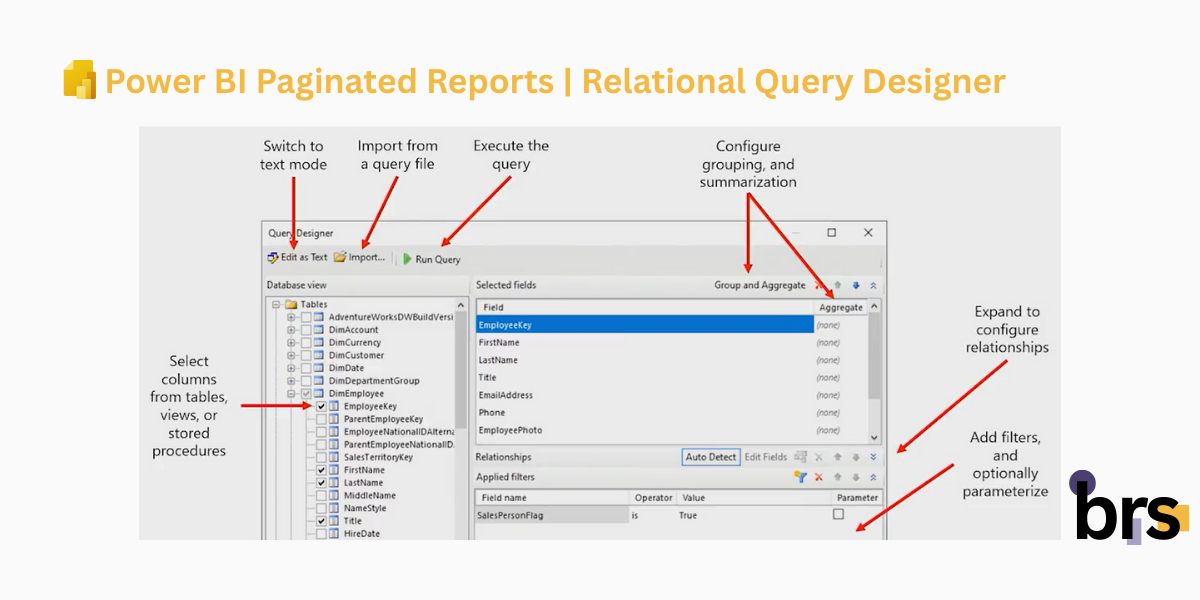
1. Relational Query Designer
Use the relational query designer to construct and test a relational query based on:
- Tables or views
- Stored procedures (not supported for on-premises sources)
Configure:
- Field selection
- Grouping and aggregation
- Relationships (table join types: INNER, LEFT/RIGHT/FULL OUTER)
- Filters with optional parametrization
Switch to text editor mode to customize the query statement.
2. Analysis Services Designers DAX (Data Analysis Expressions)
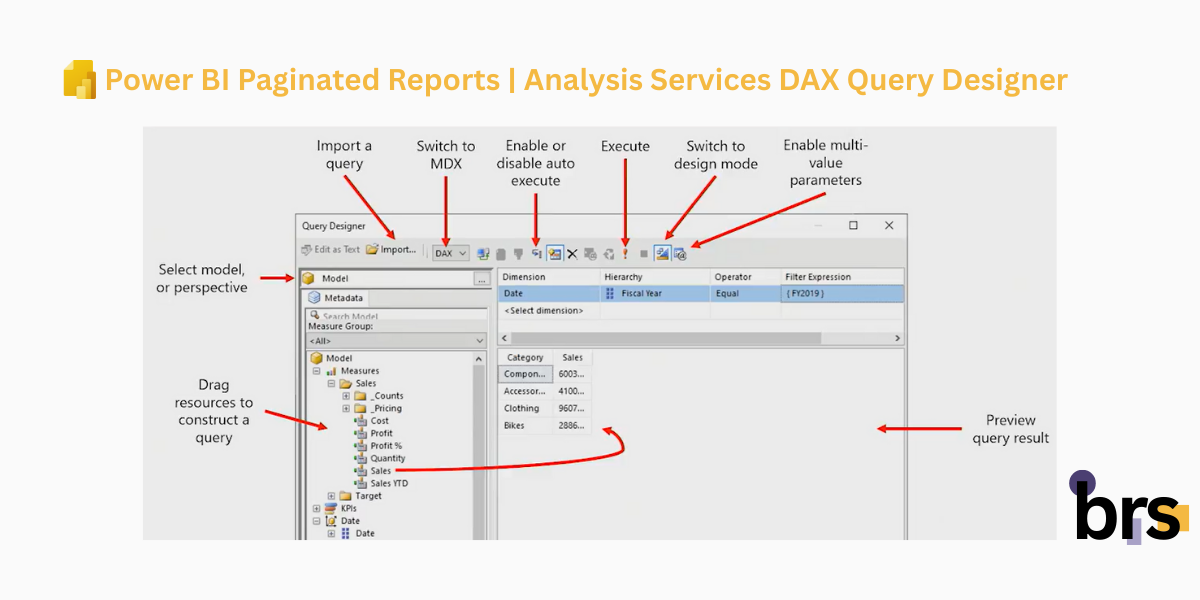
Use the DAX Query Designer when building datasets against Analysis Services sources (including Power BI datasets via XMLA). It supports tabular models—and since Power BI datasets are always tabular, DAX is usually the most natural fit. You can drag and drop measures, columns, and hierarchies, add filters, preview results, and quickly enable multi-value parameters with strong auto-configuration.
Guidance: Default to DAX for most scenarios—it is typically the best balance of speed, clarity, and performance.
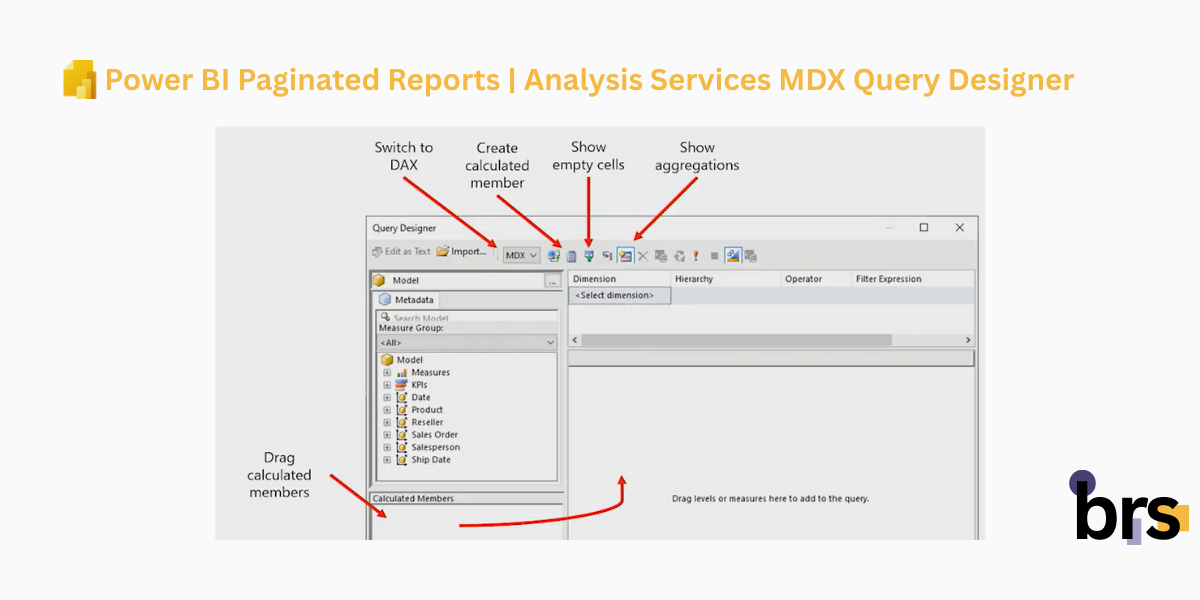
3. Analysis Services Designers MDX (Multi Dimensional Expressions)
Use the MDX Query Designer when you need capabilities that go beyond a standard tabular-style build. MDX is especially useful for calculated members, certain server-side summarization patterns, and options like handling empty cells. It is also relevant when working with multidimensional (cube) models, where MDX can be a natural choice.
Guidance: Choose MDX when you specifically need MDX-only features like calculated members or server aggregates—otherwise, DAX is the recommended starting point.
Dataset Collections: Fields, Filters, and Parameters
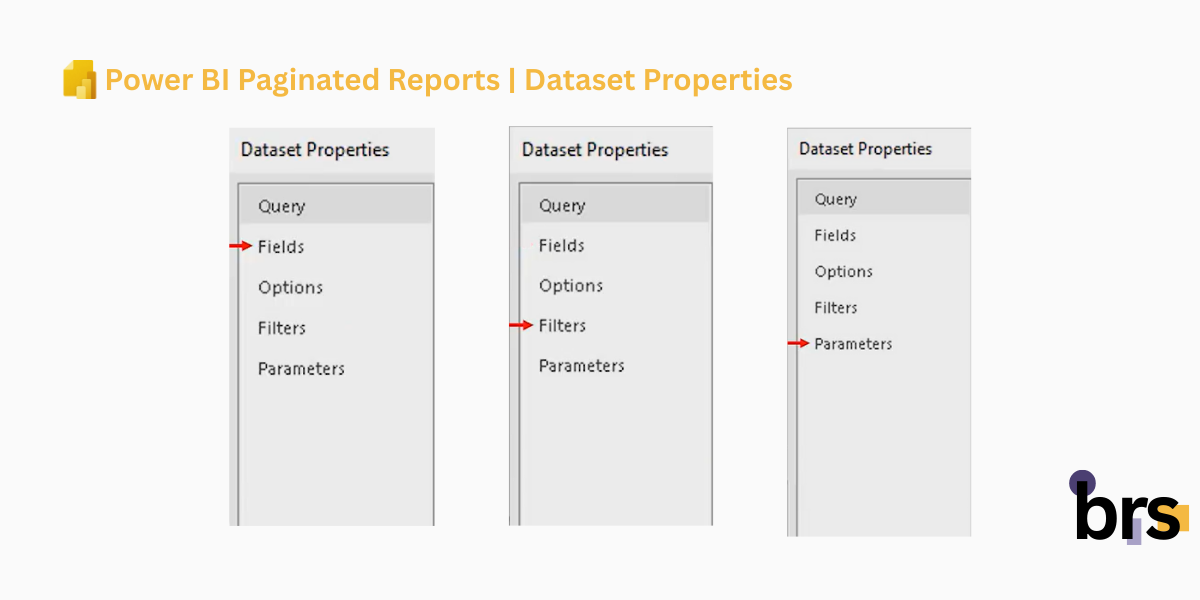
After a dataset retrieves data, dataset collections define how that data is used in the report. Fields, filters, and parameters control what is displayed, how it’s filtered, and how users interact with the results.
These elements bridge data retrieval and report layout, shaping the final output without changing the underlying query.
- Fields are used for layout report designs. They represent the tabular structure of the dataset – each column retrieved from the data source is a field.
- Filters are used to filter retrieved data. This way, a report design can operate over a subset of dataset rows.
- Parameters are used to pass values to the data source. Typically, parameters are embedded into query filter clauses (or passed into stored procedure parameters) to limit the data to be retrieved.
Recommended Practices For Paginated Reports:
- Use a Power BI dataset as an intermediary when native connectivity is not supported. Build the model in Power BI Desktop, publish it, and report from it.
- Leverage Power BI dataset features such as centralized modeling and row-level security, while extending connectivity to sources paginated reports cannot access directly (e.g., ODBC).
- Prefer stored procedures for relational reporting when possible—they improve performance, enable logic reuse, and simplify maintenance without republishing reports.
- For Analysis Services sources, default to the DAX query designer for better performance; use MDX only when you need server aggregates or calculated members.
Conclusion
Effective paginated reporting depends on precise data retrieval. Well-defined data sources, appropriate authentication, and efficient datasets ensure reports run reliably in the Power BI service.
By understanding when to use Power BI datasets, relational queries, DAX, or MDX, you can build paginated reports that are secure, scalable, and ready for production use.
At brs, we can help you turn your data into insights with Power BI. Whether you are in oil and gas, mining, or manufacturing, our team can design and implement interactive reports or paginated reports tailored to your needs.
Your data is your most valuable asset — let us help you visualize it. Contact us today at info@bowriversolutions.com or visit www.bowriversolutions.com to start your data visualization journey.
About This Series
This article is part of our Power BI Paginated Reports Series, a structured guide designed for both business leaders and report authors.
For C-level and senior decision-makers, the series explains how paginated reports support operational reporting, governance, scalability, and consistent decision-making across the organization. For analysts, developers, and power users, it provides practical insight into how paginated reports are designed, built, and refined using Power BI Report Builder.
Each article focuses on a specific stage of the paginated report lifecycle—from foundational concepts to advanced capabilities. You can explore the series in order or jump directly to related topics:
-
Previous article: Power BI Paginated Reports Series: Designing Report Layouts
-
Next article: Power BI Paginated Reports Series: Working with Parameters
-
View the full series: https://bowriversolutions.com/blog